

Discord Roles
PLEASE READ CAREFULLY
Only the person who purchased the resource(s) should claim their roles on discord. Developers/co-owners should NOT claim a purchase they did not make.
Our Discord
In order to receive roles you need to be a member of our Discord. This is our primary way of providing support for our paid scripts.
Join now and keep track of updates, events, giveaways and promotions!
Automatic Roles
In case you are already a member and connected your Discord account when purchasing - the roles will be automatically assigned.
Automatic roles will not work in the following cases
- No Discord account linked
- Gifted purchase
- Discord linked but not joined Codesign Discord
Claiming roles
You can always manually claim the roles in order to be able to receive support and access to customer-only channels.
Use the bot commands below in the #bot-spam discord channel.
Where's my Tebex ID?
You can find your Tebex Transaction Id in the emails from Tebex or Codesign.
You may need to check your email spam inbox. You can also find it in your Tebex Payment History.
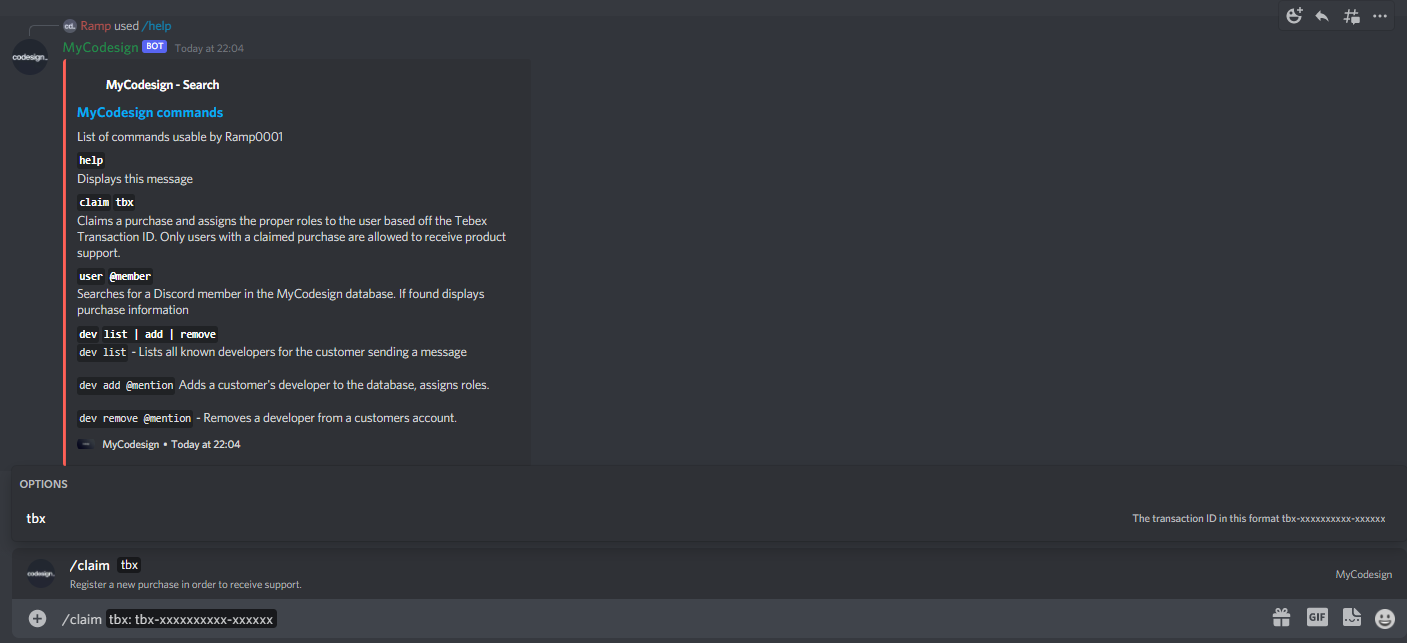
Use discord‘s slash command by typing in /claim, select the tbx option and paste your transaction ID.
Verify your team members
Do your developers, co-owners or team members need support too?
Once you have completed #Step 3 and your team member(s) have joined the Codesign Discord, the only way we can offer your team member(s) support is if you, the resource owner, manually verify them in the Codesign Discord. This will automatically give them a customer role and enable them to open support tickets and receive support. Use the bot commands below in the #bot-spam discord channel.
Remember you must use discord’s slash command for this bot.
/dev add @User
/dev remove @User
/dev list
.png)
.png)